Stage 7 tasks: Through the year, and into the next
Each task stands on its own. It says when it happens in the year, how long it takes, what you need, and what comes next. Where a task has a clip, the clip and the steps tell the same story. Where a step cannot be undone, a warning comes before it and a line after it says what to do if it was a mistake.
On this page
Record a resident who leaves
When: when a resident leaves the programme, or graduates early. About 3 minutes. You need: the first block they are out.
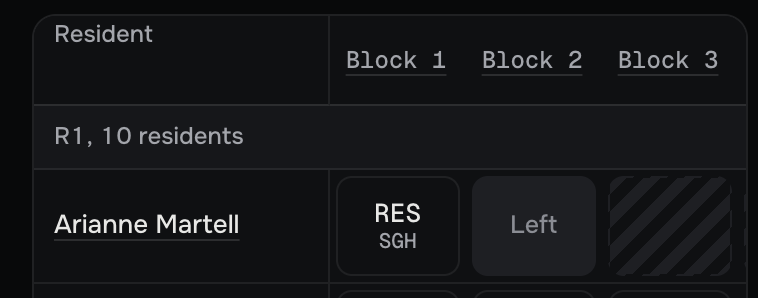
Before you start: never use Remove this resident for a leaver. It erases their record. A Left box keeps it.
- On Home, press Database, then the year they leave in, such as AY 26/27. The year opens, read only.
- Press Edit. The boxes become pressable.
- Press their box for the first block they are out. The box sheet opens.
- Press Left the programme. That box and every later box of the year turn grey.
- Press Save. A sheet lists what will change, with the resident under Leaving the programme.
- Press Save in the sheet. The line starts Saved:.
If their year is still a draft, not yet filed, press the box on the draft's table, then Left the programme.
If the resident has no row in that year, open their page, find the year, and press Edit in the Database. The year opens in Edit at their row.
If this was a mistake: press Edit again, press the Left box, and press Clear, or put the posting back. Save then lists them under Back in the programme.
More detail
- A Left box ends the resident's reading from that block: nothing after it counts. They leave later drafts, wish rounds and counts, and their record stays.
- Left covers leaving and graduating early alike.
Next: Correct a filed year.
Correct a filed year
When: during the year, whenever a posting changes: a swap, leave, or a change of department. About 5 minutes a change. You need: what changed, by resident and block.
Before you start: nothing is written until you press Save. Cancel throws your changes away, and leaving the page first asks Leave without saving?
- On Home, press Database, then the year, such as AY 26/27. It opens read only.
- Press Edit. The boxes become pressable.
- Press a box. The box sheet opens with Change posting, Change to leave, Left the programme and Clear.
- Make the change. To change many boxes, press Paint instead and paint them.
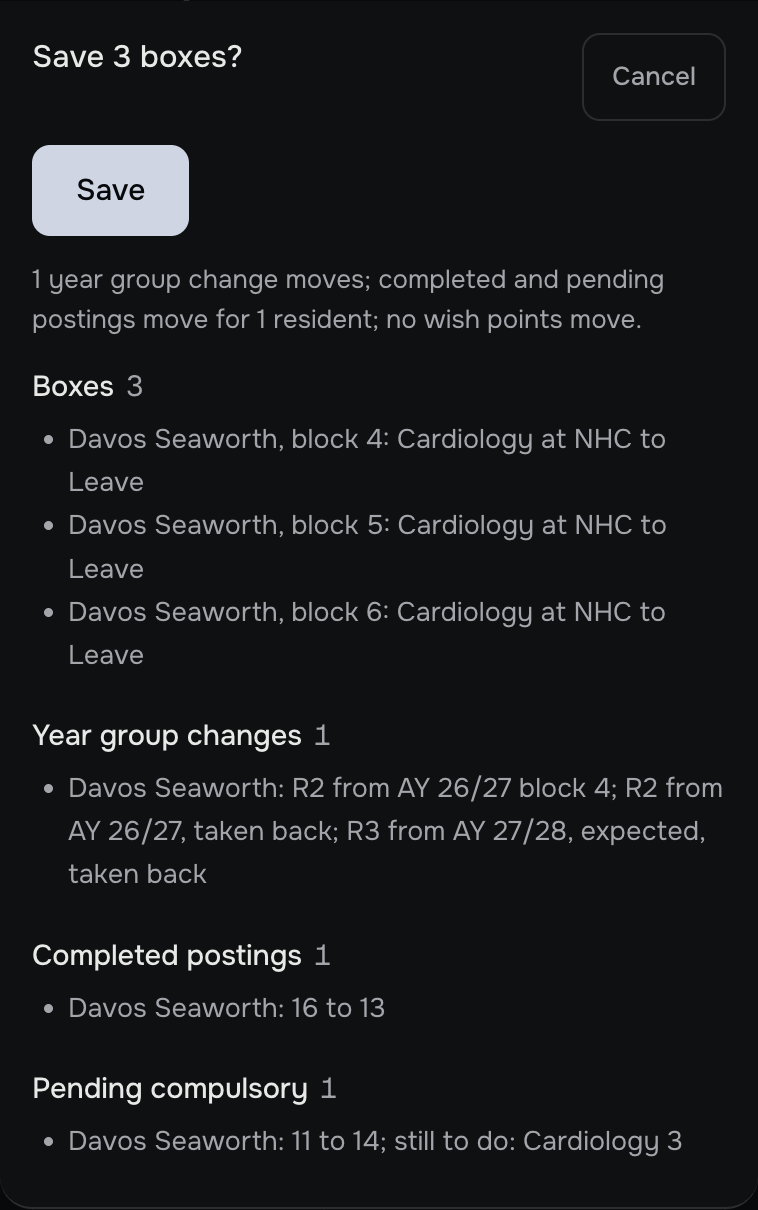
- Press Save. A sheet, such as Save 3 boxes?, lists each box from before to after, and any year group changes and wish points that move. Completed postings and Pending compulsory show each resident the Save touches, before and after.
- Press Save in the sheet. The line reads, for example, Saved: 3 boxes changed, no year group or wish point moved.
If this was a mistake: edit the year again and save. Edit history, at the end of the year's page, lists every change, newest first. A Save's line opens to list the boxes it changed.
If this goes wrong
- Changed somewhere else a moment ago. Open it again to see the change, then try again.: someone saved this year meanwhile. Your edits stay on screen. Note them, reopen the year, and make them again.
- A box sits in a year before that resident's R1 year.: that resident had not begun R1 in that year.
More detail
- A resident with no row in that year is not listed. Open their page, find the year, and press Edit in the Database: the year opens in Edit at a blank row for them. From a draft's lag line, Enter it opens the year in Edit with a blank row ready for each resident the line counts.
- Undo and Redo work within one Edit, up to 100 steps. Dragging is not offered here.
- Who moves up, and who stays lists each resident's year group change in or after that year, and why others stay, such as stays R1: served 9 of 12 blocks. What they still have to do shows on a quiet line under it, such as still to do: Cardiology 3, as information only. It reads the year as saved, not your edits in progress.
- On a posting at or before today's block, the box sheet's last row is the tick Failed, to be done again (see Mark a posting Failed).
- Manpower by block shows each department, block by block, against its band.
- Every Save works out the year's wish points again.
- The draft the year was filed from shows how many boxes now differ.
- Edit history names a draft by its number, such as D0003. The same number shows in the browser's address bar when that draft is open.
Next: See who changed what.
Mark a posting Failed
When: when a resident fails a posting and must do it again. About 3 minutes. You need: the resident, the posting and its year.
Before you start: nothing is written until you press Save.
- On Home, press Database, then the year of the posting, such as AY 25/26. It opens read only.
- Press Edit. The boxes become pressable.
- Press any box of the posting. The box sheet opens.
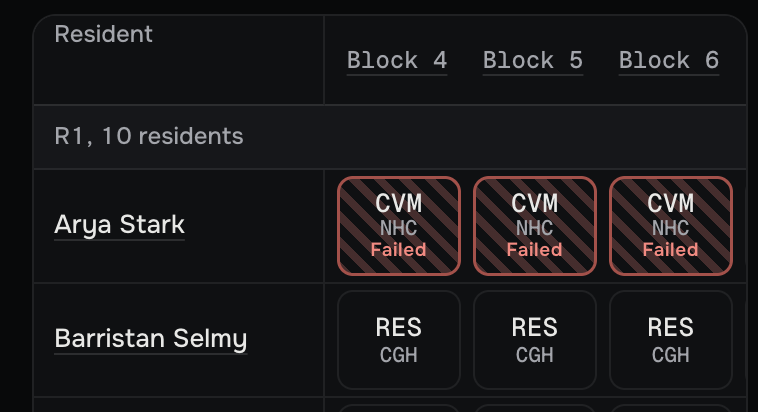
- Tick Failed, to be done again, the sheet's last row. The whole posting is marked at once: every box of that unbroken run at one department keeps its code and hospital, and gains a red edge, a red hatch behind the code and the word Failed.
- Press Save. The sheet lists each marked box, such as Arya Stark, block 4: Cardiology at NHC marked Failed. Completed postings and Pending compulsory show the resident before and after, and any year group change is listed.
- Press Save in the sheet. The line starts Saved:.
If this was a mistake: before Save, press Undo: each tick is one step. After Save, press Edit, press a box of the posting, untick Failed, to be done again, and press Save. The sheet lists each box with Failed mark taken off, and the whole posting counts again.
More detail
- The tick shows only on a posting at or before today's block. A posting after today's block, Leave, Left and an empty box have no tick.
- In the running year, a tick marks only the posting's blocks up to today's; the rest of the posting has not been done yet.
- The tick takes in every box of the same department and hospital that touches the one you pressed. If the redo sits straight after the failed posting at the same department and hospital, the tick marks or clears both together, so mark the failed posting before the redo's boxes are put in.
- The box sheet is the only place to set the mark or take it off. Paint has no Failed brush, no paste carries the mark, and a draft never holds it.
- A failed posting counts for nothing: not toward the 12 blocks that move a resident up, not toward the Curriculum, not as an elective, and not toward Completed postings or the 36 blocks of the residency. The posting goes back under Pending compulsory, and the resident must do it again before they graduate.
- So the resident moves up later, as with Leave. An R1 with a failed 3-block Cardiology posting becomes R2 three blocks later.
- A failed posting still counts as the wish it granted, so no wish points move. It still counts in Manpower by block, because the resident was in the department.
- Change posting, Change to leave, Left the programme and Clear put a different box in, and the mark goes with the old box. Painting the same department over a failed box leaves it as it is.
- The resident sees the mark on their own page, with a line under the year, such as Cardiology at NHC, blocks 4 to 6: Failed, to be done again.
- Edit history names it, such as Saved 3 boxes; Cardiology at NHC marked Failed for Arya Stark, blocks 4 to 6, or Failed mark taken off Cardiology at NHC for Arya Stark, blocks 4 to 6. The Activity page carries the same sentence.
- Filing that year again from its draft puts the draft's boxes back, without the mark. The File sheet lists them under Corrections made since then that this filing will undo.
Next: See who changed what.
Take a year out of the Database
When: rarely: when a year was filed or pasted by mistake. About 3 minutes. You need: nothing.
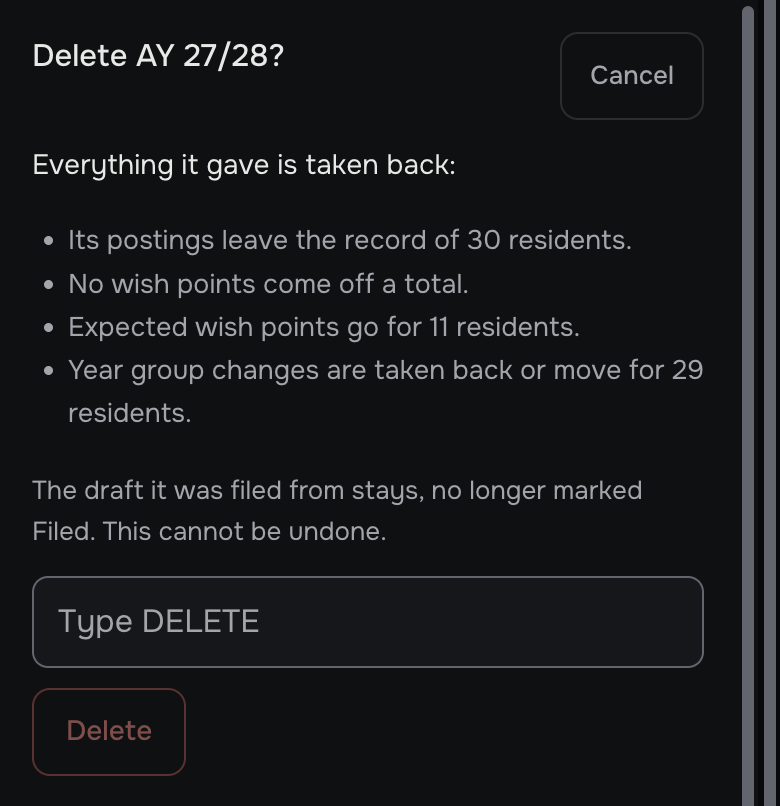
Warning: this cannot be undone. Everything the year gave is taken back. Its postings leave the residents' records, its wish points come off, and its year group changes are taken back.
- On Home, press Database, then the year.
- Press Delete. The sheet Delete AY 27/28? lists what is taken back.
- Read the lists, such as Wish points off and Year group changes taken back.
- In Type DELETE, type DELETE.
- Press Delete. You return to Database, which says Deleted AY 27/28.
If this was a mistake: the draft the year was filed from stays, no longer marked Filed: open it and file it again. A year that was pasted has no draft: paste its rows again (see Add residents' past years).
More detail
- Residents with a year group set by hand keep it.
- Type DELETE accepts capitals or small letters.
Next: Correct a filed year.
See who changed what
When: when you need to know who changed something. About 2 minutes. You need: to be an admin.
- On Home, press Admin. Only admins see this tile.
- Read Activity: sign-ins and changes to who is on the planner, newest first. Person and Month narrow this list.
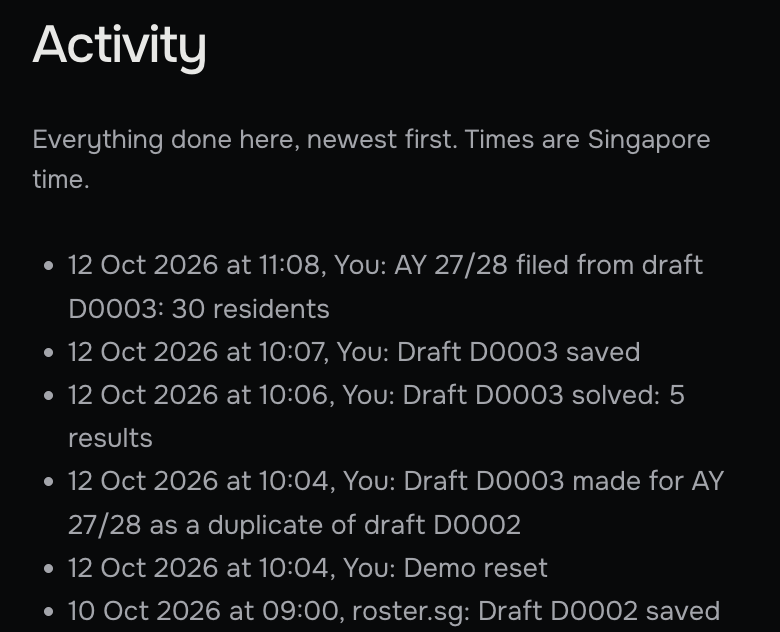
- Read the planner's own section, headed with the planner's name and the word activity. It lists everything done in the planner, newest first: the date and time, who, and what.
- Press Show 10 more for older lines.
More detail
- Who reads as a colleague's email, as roster.sg for the planner itself, or as Someone.
- Drafts are named by their number, such as D0003, the same number the browser's address bar shows when that draft is open. Departments and Curriculum rows are named by their codes, such as CVM or HAE+DMO.
- A year group set by hand shows only as the resident being changed, such as Resident Jon Snow changed.
- Members who are not admins cannot see this page. Each Database year's Edit history lists that year's changes, without who made them.
- In the demo, the Activity tile shows the same kind of list, with your own changes as You.
Next: Start next year.
Start next year
When: each year, before the next wish round, once this year has begun. About 30 minutes, then the stages that follow. You need: this year's changes so far, and next July's intake.
The cycle starts again at Stage 2. Before it does, bring the Database and the programme up to date.
- Correct this year in the Database, so it shows what is really happening (see Correct a filed year).
- Add next July's intake as R0 (see Add next July's intake as R0).
- Check the departments, their bands and the Curriculum for anything that has changed (see Check the departments and their manpower bands and Check the Curriculum).
- Check every resident's year group and work email (see Check every resident's year group).
- Start next year's wish round (see Start the wish round).
- After its Deadline, make next year's draft and carry on through Stages 3 to 6 (see Make next year's draft).
More detail
- A year's wish points join each resident's total once its block 12 has passed, and the solver weighs them in Fairness. Each resident's page shows the total under Who.
- Drafts from earlier years stay under Load previous draft until you delete them.
Next: Stage 2 tasks: Wish round.