Stage 2 tasks: Wish round
Each task stands on its own. It says when it happens in the year, how long it takes, what you need, and what comes next. Where a task has a clip, the clip and the steps tell the same story. Where a step cannot be undone, a warning comes before it and a line after it says what to do if it was a mistake.
On this page
Add next July's intake as R0
When: before next year's wish round, once you know who joins next July. About 5 minutes. You need: each new resident's name and work email.
The residents who start R1 next July are R0 until then. Add them before the round's first invitation, so it reaches them. Added later, they get the next reminder.
- On Home, press Residents, then Add residents.
- Press Add resident. For many residents, press Paste residents instead (see Add residents).
- Type the Name and pick R0 as the Year group. The sheet shows when R1 begins, for example R1 from July 2027.
- Optional: press More and type the Work email.
- Press Add. The line reads, for example, Added Osha Wilding as R0, R1 from July 2027.
- Check them in the R0 group on Existing residents.
If this goes wrong
- Not added: the cohort is after next year: R0 is only for next July's intake.
- Added someone as R0 who is R1 now? On their page, correct R1 from year and R1 from block (see Change a resident's details).
More detail
- An R0 owes nothing until R1 begins, and is not in this year's drafts or this year's round.
- In next year's round and next year's draft they appear as R1. On Wishes they are marked now R0.
- In a paste, write their year group as
0,R0orYear 0.
Next: Start the wish round.
Start the wish round
When: once this year is in the Database, several weeks before the planning deadline. About 10 minutes. You need: the five dates: the first invitation, three reminders and the deadline.
Set five dates once; emails go out on those dates (25 s)
Before you start
- Next year's round opens only once this year is in the Database, filed or pasted.
- Residents with no work email get no email. Check for no email on Existing residents first.
- The round is for the residents who will be R1, R2 or R3 next year. Next July's intake must be in as R0 (see Add next July's intake as R0).
- On Home, press Residents, then Wishes.
- Under Year, pick next year, for example AY 27/28, next year.
- Press Start a new round. When an earlier round is shown, the button reads Start. The page is now headed Wish round for AY 27/28.
Warning: the dates must run in order, no two on the same day. For the invitation or a reminder, a date of today or earlier asks first, and pressing Send sends that email at once.
- Under Milestones, press Set a date beside First invitation and pick its date. A future date saves at once, and Saved shows beside the heading.
- Set the First reminder, Second reminder and Third reminder the same way. Optional: leave a reminder blank to send none.
Warning: the Deadline never asks first. A Deadline of an earlier day closes the round at once, and one of today closes it at the end of today.
- Set the Deadline. The page says Each email goes out by itself on its day.
Each email goes out at 09:00 Singapore time on its date. The invitation goes to every resident in the round who has a work email. Each reminder goes only to those with no wishes yet.
If this goes wrong
- Next year opens once AY 26/27 is filed.: put this year in the Database first, by a paste or a filing (see Add residents' past years).
- A round is open. Start a new one once it closes.: the last round has sent emails and is still open. Close it first (see Close the round).
- The dates run in order, and no two share a day.: change the dates so each comes after the one before.
- Sent already: that date is fixed.: that email has gone. You can still move the later dates.
- Picked the wrong year? While no email has gone, start a new round for the right year: it takes the first one's place. Once an email has gone, the round's year cannot change.
If you pressed Send by mistake: the email has gone and cannot be recalled. Tell the residents by your usual channel.
More detail
- The invitation comes from roster.sg rotation wishes, with a subject starting [roster.sg] Your rotation wishes for AY 27/28, please make them by and then the deadline. It carries no link: residents go to roster.sg and sign in. Its text is in The emails the planner sends.
- Residents expected to graduate, and residents who have left, are not in the round.
- A resident added after the invitation is reached by the next reminder.
- At most 90 round emails go out a day, counting the daily emails, Send, Send email and closing. The rest go the next day.
- AY 26/27, this year starts a round about this year itself. To plan next year, pick next year.
- A Deadline that has passed can be moved later, which reopens the round, unless the round was closed by hand.
- The last round moves to Earlier rounds when the new one starts.
Next: Follow the replies and nudge a resident. Try it in the demo: its round is already open, so move a reminder date.
Follow the replies and nudge a resident
When: while the round is open, about once a week. About 5 minutes. You need: nothing.
See who has not replied, nudge one resident
- On Home, press Residents, then Wishes.
- Read the replies line, for example 21 of 30 replied. A resident has replied once their list holds at least one wish, whoever typed it.
- Read Not in yet. It lists the residents with no wish yet, grouped by the year group they will be in. Each name shows no email, or sent and a date.
- To nudge one resident, press Send email beside their name. The page asks, for example, Send Lancel Lannister the wish email for AY 27/28?
- Press Send. The line reads Sent.
- For a resident marked no email, press their name and type their wishes for them (see Type a resident's wishes for them).
If this goes wrong
- Today's emails are used up. Try again tomorrow.
- That resident has no work email.: add it on their page first.
- The email did not go. Try again.
More detail
- Replied lists the residents with at least one wish. Earlier rounds lists past rounds with their replies.
- Send email is greyed once the round has closed.
- In the demo, Send email answers Would have sent.
Next: Type a resident's wishes for them, then Close the round. Try it in the demo: press Send email beside a name.
Type a resident's wishes for them
When: while the round is open, for a resident with no email or who sends wishes by message. Also after the deadline, for a late change. About 1 minute a wish. You need: their wishes, first choice first.
Open a resident, make a wish, see it join their list (24 s)
- On Home, press Residents, then Existing residents, then the resident's name. Their page opens.
- Scroll to Wishes for AY 27/28. Their list shows each wish as a numbered sentence, first choice first.
- Press Make a wish.
- Pick Request a posting or Avoid a posting. The wish appears as a sentence with blanks to pick.
Warning: a request for a posting the resident must do anyway earns points only when it names the hospital as well. The planner does not warn about this.
- Pick the specialty, then the length, the hospital and the period. A part left as any duration, any hospital or any period matches anything.
- Press Add this wish. The wish joins their list.
- Optional: press Up or Down to move it to its rank.
If this goes wrong: Add this wish waits until the wish can work. Until then, a sentence under the wish says why. The common ones:
- That specialty is complete already. or No elective room is left in that specialty.: the resident has done as many blocks of it as allowed.
- That department does not offer that length.: pick another length or hospital.
- It must be done this year: say which hospital or which period to avoid.: the avoid would leave no way to do a posting they owe this year.
- That wish is on the list already.
More detail
- A wish is one of three kinds: a request for a posting, an avoid of a specialty, or an avoid of a hospital. For a hospital avoid, pick any specialty and the hospital. It shows paid by the block: it earns a share for each block clear of that hospital.
- The period can be any period, a quarter such as quarter 2 (blocks 4 to 6), a run of blocks, or one block.
- To change a wish, press its sentence, change the blanks, and press Save this wish. Remove takes a wish off at once, with no question.
- Your editor works on the current round's year at any time, the deadline included. Earlier years show under Earlier years, read-only, each wish with how it turned out.
- Under Who, their page shows their wish points, such as Wish points: 183 so far, 50 expected for AY 26/27. A granted first wish pays 100 points, the second 50, the third 33, and so on. The points so far are those of the years that have ended, and every later solve weighs them in Fairness; the expected points are this year's, counted once it ends. With nothing still expected this year, the line reads Wish points: 183 so far.
- How wishes earn points: How a wish earns points.
Next: Close the round. Try it in the demo: give a resident marked now R0 a wish for Cardiology at NHC.
Copy last year's wishes forward
When: at the start of a round, for a resident who was in last year's round. About 1 minute a resident. You need: last year filed in the Database.
Only coordinators can do this. Residents cannot copy wishes forward on their own page.
- Open the resident's page and scroll to their wishes.
- Press Copy last year's wishes forward. A list opens, headed Wishes that paid nothing in AY 26/27, with every wish ticked.
- Untick any wish you want to leave out.
- Press Copy the ticked. The line reads, for example, Copied 2 wishes to the bottom of the list. Each copied wish ends from AY 26/27.
- Press Done.
If this goes wrong
- Last year is not filed yet.: file last year first.
- None.: none of last year's wishes went unpaid.
- Any wish under Not copied no longer fits this year, and says why.
Next: Close the round.
Close the round
When: when every wish you need is in, if you do not want to wait for the Deadline. About 2 minutes. You need: nothing.
You do not have to close a round by hand. When the Deadline passes, the round closes by itself, and the closing email goes with the next 09:00 emails.
Warning: closing cannot be undone. It closes the round now, drops the reminders not yet sent, sets the Deadline to today, and emails everyone the round invited. A round closed by hand cannot be reopened.
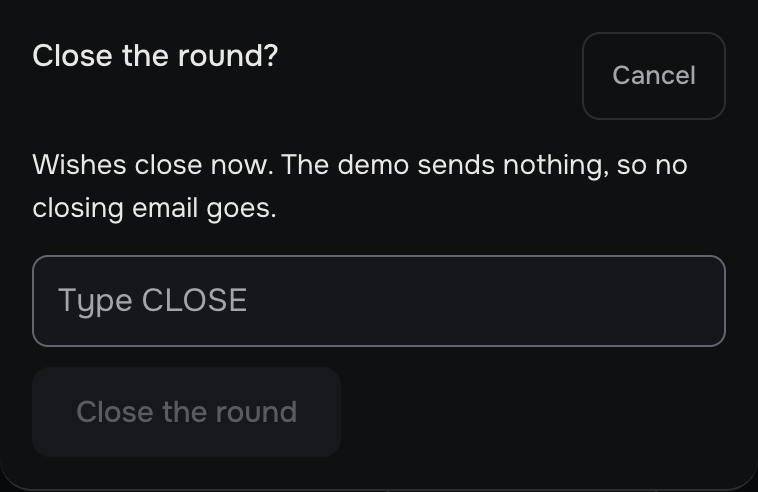
- On Wishes, press Close the round. The sheet Close the round? says Wishes close now, and everyone the round invited gets the closing email.
- In Type CLOSE, type CLOSE.
- Press Close the round. The line reads Closed., and the heading gains Closed on and today's date.
If this was a mistake: residents can no longer change their lists, but you still can. Type their changes for them on their pages (see Type a resident's wishes for them), and tell the residents by your usual channel.
More detail
- The closing email says the round has closed and the wishes as they stand are the ones used. For a change, it tells residents to contact their coordinator.
- A round that closed by its Deadline, not by hand, reopens when you move the Deadline later. While residents are still not in, the page says Move the deadline to reopen the round.
- Close the round before you file that year (see File the year in the Database).
- In the demo, closing affects everyone, though it sends nothing. Try it there only when you know nobody else is using the demo.
Next: Stage 3 tasks: Plan.