Stage 3 tasks: Plan
Each task stands on its own. It says when it happens in the year, how long it takes, what you need, and what comes next. Where a task has a clip, the clip and the steps tell the same story. Where a step cannot be undone, a warning comes before it and a line after it says what to do if it was a mistake.
On this page
Make next year's draft
When: after the wish round's Deadline, or earlier to get ready. About 3 minutes. You need: the departments, the residents, their past years and this year all in the Database.
Plan a new year: a new draft of next year opens as a table (25 s)
Before you start: make the draft once everything is in. A draft keeps the residents, year groups, departments and Curriculum as they were when it was made (see What a draft remembers).
- On Home, press Plan a new year. A new draft of next year opens as its table, named, for example, AY 27/28 Draft 1.
- Check that Academic year shows next year, for example AY 27/28.
- Optional: to give it a name of your own, press the pencil beside the name. The Table name field opens. Type the name and press Done.
If this goes wrong
- Another draft of this year already has that name.: pick another name, such as AY 27/28 Draft 2.
- A name cannot be blank. or That name is too long.: a name runs to 80 characters at most.
- Pressed Plan a new year but went elsewhere before the draft opened? It was still made: find it under Load previous draft.
More detail
- Plan a new year makes a draft of next year in any month: from July 2026 to June 2027, a draft of AY 27/28.
- To plan another year, pick it in Academic year. A name in the planner's own form, such as AY 27/28 Draft 1, follows the year: it becomes the next free name of that year, such as AY 26/27 Draft 1, once the page has read the draft again. A name you typed never changes.
- A new draft starts with no boxes and no rules of its own. Its scoring numbers are the last ones saved on any draft. Its block dates are the year's dates as the Database holds them, or else a guess of one calendar month per block from July.
- Academic year offers four years, which move on each 1 January: in 2026, AY 24/25 to AY 27/28. Once a draft is filed, its year is locked: Filed: the year cannot change.
- Several drafts of one year can sit side by side. Each is independent.
- To reopen a draft, press Load previous draft on Home, then its name. A draft with unsaved changes has two rows there. Its name opens its last saved version, look only. The row ending - autosave opens your latest work. After a change of year, both rows keep the old name until you press Save.
Next: Place the postings you must.
Place the postings you must
When: after making the draft, before solving. About 10 minutes. You need: the postings already agreed, any leave, and anyone leaving the programme.
Paint any box you want fixed, then save the draft
Before you start
- Every box you place is kept by the solver exactly as it is, even if it breaks a rule. A one-block piece of a three-block posting is allowed, and the result's analysis will name it.
- Place a whole posting, not one block of it. A box that leaves a resident no way to fit what they owe this year stops the solve.
With Paint, quickest for many boxes
- On the draft's table, press Paint. The palette opens: each department under its specialty, then Leave and Left the programme.
- Pick a department, Leave or Left the programme. The palette folds to one line, such as Painting Cardiology at NHC: tap boxes.
- Press each box to paint. It shows the specialty's code over the hospital's, with a small corner mark.
- To paint something else, press Change and pick again.
- Press Paint again to stop painting.
- Press Save. Saved shows by the draft's name.
One box at a time
- Press a box. A sheet opens with the resident's name and the block.
- Press Add posting, pick the Specialty and the Hospital, then press Add. For leave, press Add leave instead.
To move a filled box, hold it for about half a second, then drag it to another open box. On a computer, drag it with the mouse. Dragging onto a filled box replaces that box.
If this was a mistake: press Undo, as often as you need, up to 100 steps. Redo puts a step back. Or press the box, then Clear: it empties the box and hands it back to the solver.
More detail
- The table groups residents by the year group they start the year in, R1, R2 and R3, each with its count. A resident who moves up during the year shows in both groups, with the other group's boxes grey.
- Left the programme marks the resident out from that block: that box and every later box turn grey (see Record a resident who leaves).
- Leave counts for nothing: it is not a posting, does not count toward the resident's year, and does not count toward a department's band.
- Press a block's heading, such as Block 3, to see that block: each department's count against its band, and who is placed there.
- Undo steps last while the planner stays open in that tab. A reload, Sign out or the roster.sg wordmark drops them, but your boxes stay.
- The box sheet and the palette offer only the departments the draft was made with. To use a department added since, press Duplicate: the duplicate offers it.
Next: Set the block dates. Try it in the demo: paint one box, then press Undo.
Set the block dates
When: any time before filing. About 5 minutes. You need: each block's start and end date.
Set the twelve block dates
Before you start
- The dates are optional while you plan. With none, the planner works on block numbers 1 to 12. But a year keeps its dates in the Database only when all twelve are set at filing, and those dates decide which block is today's.
- A start date changed after the ends are set can make two blocks overlap. The page then notes it by the later block, such as Starts before block 4 ends. The draft keeps such dates, but filing refuses them.
- On the draft's table, press Set the dates. The page lists Block 1 to Block 12, each with a Start and an End.
- Set Block 1's Start.
- Set Block 1's End. The next block's start becomes the day after, and Autosaved flashes by the heading.
- Set each later block's End in turn, down to Block 12.
- Check each block's length, such as 31 days. Outside 27 to 35 days the page notes 27 to 35 days is usual, but does not stop you.
- Press Back to return to the table.
If this goes wrong
- Block 3 ends before it starts.: set its end after its start.
- Starts before block 4 ends: this block starts on or before the day block 4 ends. Move its start after that day, or block 4's end earlier.
- To clear a date, press the small grey cross beside it.
More detail
- The dates belong to the draft until it is filed.
- Today's block decides what is fact and what is still expected (see Today's block, fact and expected).
Next: Check the rules and scoring.
Check the rules and scoring
When: before each solve. About 10 minutes the first time, 2 after. You need: nothing.
Check the rules and scoring
- On the draft's table, press Settings. The panel opens with two closed folds, Rules and Scoring.
- Press Rules. Read Curriculum quotas, Manpower bands and Built-in rules. They come from what the draft keeps of the programme, and cannot be changed here.
- Read Your rules: the rules added to this draft, or None yet.
- Press Scoring. Check the five numbers: Wishes, Fairness, Preferences, R1 core postings in R1, reward and R2 compulsory postings in R2, reward.
Warning: a number you change is kept at once, and becomes the starting number of every new draft. A change in Settings while a solve runs throws that solve's results away.
- Optional: type a new number and leave the box. Saved shows for two seconds.
- Press Settings again to close the panel.
If this goes wrong: a sentence under a box, such as A whole number from 0 to 100., means the number is out of range. The two rewards take 0 to 1,000.
More detail
- What each number changes: The scoring numbers. Why: The score.
- How the scoring works, at the end of Scoring, explains the numbers on screen with a worked example.
- Only the ratio of Wishes, Fairness and Preferences matters: 5, 5, 5 gives the same table as 1, 1, 1.
- Drafts you made earlier keep their own numbers.
- Settings has no Save: each change is kept with the draft as you make it.
Next: Add a rule of your own if the year needs one, or Solve the table.
Add a rule of your own
When: when the year needs something the built-in rules do not cover, such as a department taking residents only in some blocks. About 5 minutes a rule. You need: the rule in plain words.
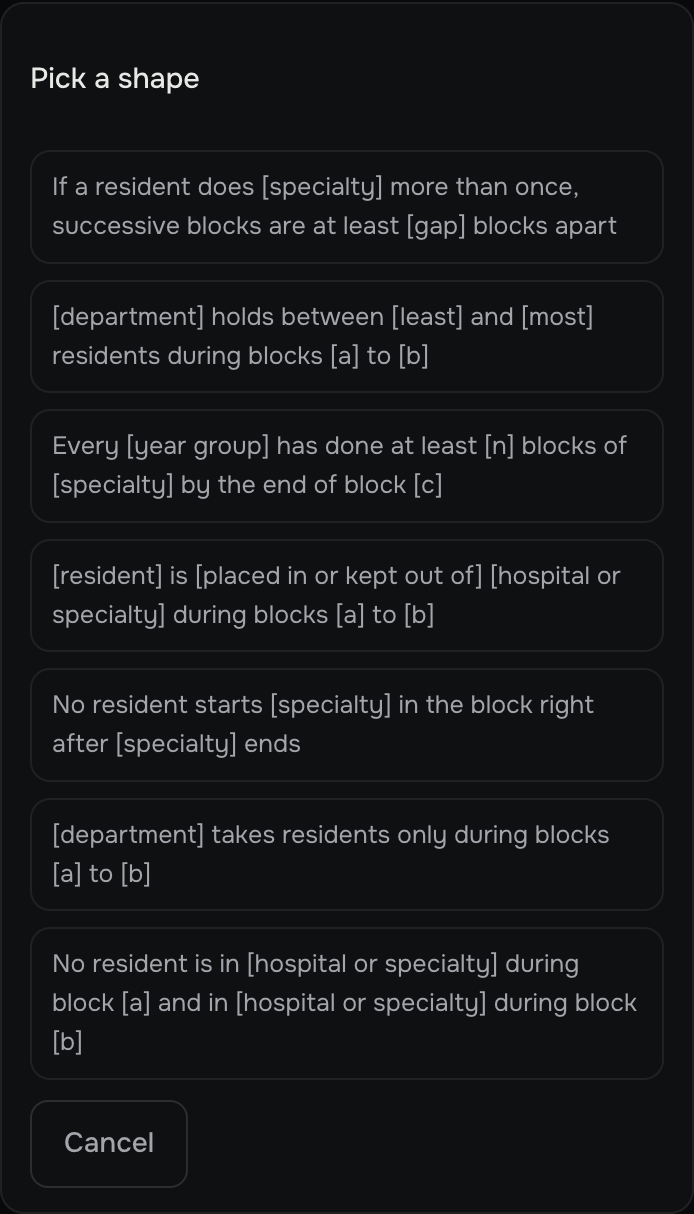
- In Settings, press Rules, then Add a rule. Pick a shape shows seven sentences.
- Pick the sentence that fits. Its blanks read pick.
- Press each blank and pick its value.
- Pick Must, a rule never broken, or Prefer, a rule the score rewards or penalises. A band rule is always a Must. The seventh sentence, No resident is in [hospital or specialty] during block [a] and in [hospital or specialty] during block [b], is always a Prefer, so it offers no Must.
- For a Prefer, pick Penalty or Reward, and type its weight, a whole number from 1 to 100,000. It starts at 10.
- Press Add this rule. It waits until the rule is checked against the built-in rules and your other rules, then joins Your rules.
If this goes wrong: the sentence says where the fact lives, for example:
- That is more than its Most allowed: change it in Curriculum.
- Outside those blocks the department still needs its least: change its band in Departments or add a band rule.
- The least cannot be above the most. or Pick the earlier block first.
- The two blocks must be different. The seventh sentence needs two different blocks.
- That rule cannot hold. Change it and try again.
More detail
- The seven sentences are listed in Your own rules.
- A band rule sets a department's least and most for some blocks, in place of its usual band.
- To change a rule, press its pencil. To remove one, press its cross: it goes at once, with no question.
- Two clashes between your own rules show only when you press Solve this table. One is two band rules on one department in the same blocks. The other is a band rule asking for residents in blocks when the department takes nobody.
- A draft holds up to 200 rules of your own.
Next: Solve the table.