2. Before you start
On this page
Sign in and open the demo
When: before anything else. About 1 minute. You need: a work or personal email.
One shared demo; Reset starts afresh (22 s)
- Go to roster.sg and press Sign in.
- Type your email and press Send code. A six-digit code arrives by email.
- Type the code. The page goes on by itself at the sixth digit. If it does not, press Verify.
- On Choose a tool, press Rotation Planner (Demo). The demo's Home opens.
For your programme's own planner, press its tile in step 4 instead. The tile carries your programme's name. It appears once a colleague has added you (see Add a colleague to the planner).
If this goes wrong
- That address is not on the accepted list. Use your work email, or a mainstream personal email such as Gmail or Outlook.
- That code has expired. Send a new code to continue. A code lasts 10 minutes. Press Send a new code.
- That code is not right. Check the digits and try again. After 5 wrong tries, press Send a new code.
- You are not on this tool yet. Ask an admin to add you. Ask a colleague who is an admin to add you on People.
More detail
- The code comes from roster.sg sign-in, with the subject [roster.sg] 123456 is your sign-in code. There is no password.
- Send a new code waits 60 seconds between sends. A new code stops the old one working, so wait for the first email before you ask again.
- If roster.sg has been quiet for a while, a waiting screen says Waking up the engine. The first visit after a quiet spell can take up to a minute.
- Your device remembers the tool you chose, so your next visit opens straight on its Home.
- To sign out, press the roster.sg wordmark at the top of any page, then Sign out on Choose a tool. A resident has Sign out at the foot of their own page.
Next: Find your way around Home.
Reset the demo
When: before a practice of your own, when nobody else is using the demo. About 1 minute. You need: to be in the demo.
The demo is a second planner with made-up residents. Everyone signed in shares it and sees each other's edits. Resetting it wipes it for everyone and starts it afresh.
Warning: a reset cannot be undone. Anyone working in the demo at that moment loses their work.
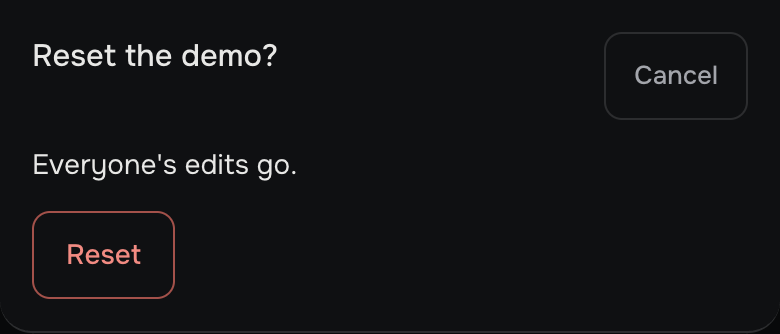
- On the demo's Home, press Reset the demo. The sheet Reset the demo? says Everyone's edits go.
- Press Reset. Home says The demo starts afresh.
If this was a mistake: nothing brings the earlier demo back. It starts again from its usual made-up programme, so anyone affected can start their practice again.
More detail
- A fresh demo holds the planner's 9 hospitals, 36 departments and both Curriculum versions.
- It has 40 fictional residents, 10 each in R3, R2, R1 and R0, with their past years in the Database and this year planned and filed.
- It has a wish round for next year, with lists for 21 of its 30 residents.
- It has one saved draft for next year, with its block dates set and four residents' boxes placed by hand.
- Every date in the demo counts from the day of the reset. For a reset between July 2026 and June 2027, next year is AY 27/28 and the draft is AY 27/28 Draft 1.
- The demo sends no email. Where the planner would send one, it says Would have sent.
- A solve in the demo takes up to 2 minutes, not 15.
- The demo's manpower bands are a sixth of the real ones, to fit 30 residents a year.
- People and Admin are not in the demo. Its Activity tile lists everything done in it, newest first.
Find your way around Home
When: your first visit. About 3 minutes. You need: to be signed in.
Home, tile by tile: what each one opens (26 s)
- On Choose a tool, press your planner's tile, or Rotation Planner (Demo). Home opens: a column of tiles.
- Read each tile and its note (the table that follows).
- Press a tile to open its page. Press Back to return.
| Tile | Its note | Use it to |
|---|---|---|
| Plan a new year | A new draft of one academic year. | Make a draft of a year's table. |
| Load previous draft | Your saved drafts. | Reopen, duplicate or delete a draft. |
| Residents | Who is in the programme. | Add residents, see everyone, and run the wish round. |
| Departments | Each department's places, block by block. | Check hospitals, departments and their manpower bands. |
| Curriculum | What each year group must clear. | Check what each year group must complete. |
| Database | Every year's table as the record holds it. | See every filed year, and correct one. |
| People | Who is on this tool and how to add a colleague. | Add a colleague. |
| Admin | Everything that has happened on this tool. | See who changed what. Only admins see this tile. |
In the demo, Activity (Everything done here, newest first.) takes the place of People and Admin, and Reset the demo follows the tiles.
Getting around
- The roster.sg wordmark, at the top of every page, goes to Choose a tool. It also forgets your remembered tool and drops every draft's Undo steps.
- Back, at the end of every planner page, is the browser's own Back. It returns to the page you came from.
- Night and Day switch the colours.
- A sheet is a panel that opens over the page. It closes with its Close, Cancel or Stay, with the Escape key, or when you press the dimmed page.
- When the planner refuses a press, nothing changes and one sentence by the button says why. If something goes wrong covers the common ones.
- A page that could not load says This page did not load. Try again.
Who can do what
| Who | How they get in | What they can do |
|---|---|---|
| Admin | Added on People as Admin | Everything a member can, plus: add colleagues as admins, remove colleagues (not themselves), and open Admin to see who changed what. |
| Member | Added on People as Member | Every planner page and action. Typing FILE, DELETE or CLOSE is the only extra check. On People, can add members only. |
| Resident | Their work email is on their resident record | Only their own page: their figures, their record by year, and their wishes while the round is open. |
| Anyone signed in | Any accepted email | The two demos. |
Residents are never added on People. A resident signs in with the work email on their record (see Add residents).
How your work is saved
| What you change | When it is kept | What to know |
|---|---|---|
| A draft's boxes, name, academic year and block dates | At once, in the draft's autosave | Save makes the draft's saved version. Until then Unsaved changes shows by its name. A solve and a filing both use what is on screen. |
| Settings, Curriculum numbers, wishes, wish round dates, and whatever a department, hospital or resident sheet saves | At once, for good | Nothing to save afterwards, and no Undo. |
| A Database year | Only when you press Save in Edit | Leaving with unsaved edits asks Leave without saving? |
- Undo on a draft keeps up to 100 steps while the planner stays open in that browser tab. A reload, Sign out or the roster.sg wordmark drops them.
- Two windows or two people at once: a change made from an out-of-date screen is refused with Changed somewhere else a moment ago. Open it again to see the change, then try again. Reopen the page and make the change again.
What to gather before your first year
- Each department: its specialty and hospital, the least and most residents it takes in a block, and its posting lengths (1, 2 or 3 blocks). The planner comes with 36 departments filled in, to check.
- The Curriculum your residents follow, by intake year. Two versions come filled in, Before AY 2025 and From AY 2025.
- The resident list: each resident's name (no two the same), year group (R0 to R3), work email, and the year their R1 began, for the admission cohort.
- Past postings: for each resident, every finished academic year since their R1 year began, twelve blocks a year.
- This year's postings, block by block, as planned. They paste in with the past postings.
- The block dates, start and end, for this year and next year.
- The wish round's five dates: the first invitation, three reminders and the deadline.
- The emails of colleagues who will use the planner.
- A spreadsheet program: Excel, Numbers or Google Sheets. The pastes come from a spreadsheet.